
For over a decade, AWS had two separate storage worlds: S3 for cheap, durable object storage accessed via HTTP APIs, and file systems (EFS, FSx) for POSIX access over NFS. If your workload needed both — ML training pipelines reading datasets, agentic AI agents sharing files, data pipelines staging results — you either rewrote your code to use the S3 SDK, ran a sync job between S3 and EFS, or used a FUSE-based workaround with significant limitations.
On April 7, 2026, AWS launched Amazon S3 Files — a managed file system backed directly by an S3 bucket. Your compute resources mount it over NFS v4.1 and use standard file system calls. Every write syncs back to your S3 bucket as a regular S3 object, accessible via SDK, CLI, or console. No agents. No sync jobs. No code changes to existing tools.
I set this up in my own account end-to-end. Here's exactly how to do it, what to watch out for, and what's actually going on under the hood.
How It Works
S3 Files is built on Amazon EFS infrastructure. When you create an S3 file system, AWS provisions NFS mount targets in your VPC. Your compute resources (EC2, ECS, EKS, Lambda) mount these targets over NFS v4.1 and see your S3 objects as files and directories.
S3 Files Architecture — How It Works
A few accuracy notes on the internals that are worth understanding:
- Active data gets cached on EFS high-performance storage (~1ms latency). Files not in the cache are served directly from S3, which maximises throughput for large sequential reads.
- Consistency model is NFS close-to-open — writes from one client become visible to another client after the writing client closes the file. Not real-time, but reliable for the workloads this is designed for.
- S3 sync is async — writes land on the EFS-backed file system first, then S3 automatically reflects them as new objects or new versions within minutes. Reads from the S3 side may lag slightly.
- POSIX permissions use UID/GID stored as S3 object metadata. The file system enforces them on access.
- Encryption: TLS 1.3 in transit, SSE-S3 or KMS at rest — no additional config needed.
Not the Same as Mountpoint for S3
amazon-efs-utils package (pre-installed on AWS AMIs).Step-by-Step Setup
Here's the full walkthrough — from an existing S3 bucket to a working mount on an EC2 instance.
Prerequisites
- An S3 bucket with versioning enabled (required by S3 Files)
- An EC2 instance in a VPC (Amazon Linux 2 or AL2023 recommended —
amazon-efs-utilsis pre-installed) - An IAM role attached to the EC2 instance with the necessary permissions (covered below)
Step 1: Navigate to S3 Files
S3 Files lives inside the S3 console — not EFS. Go to the S3 service, then in the left sidebar select Files → File systems. Click Create file system.
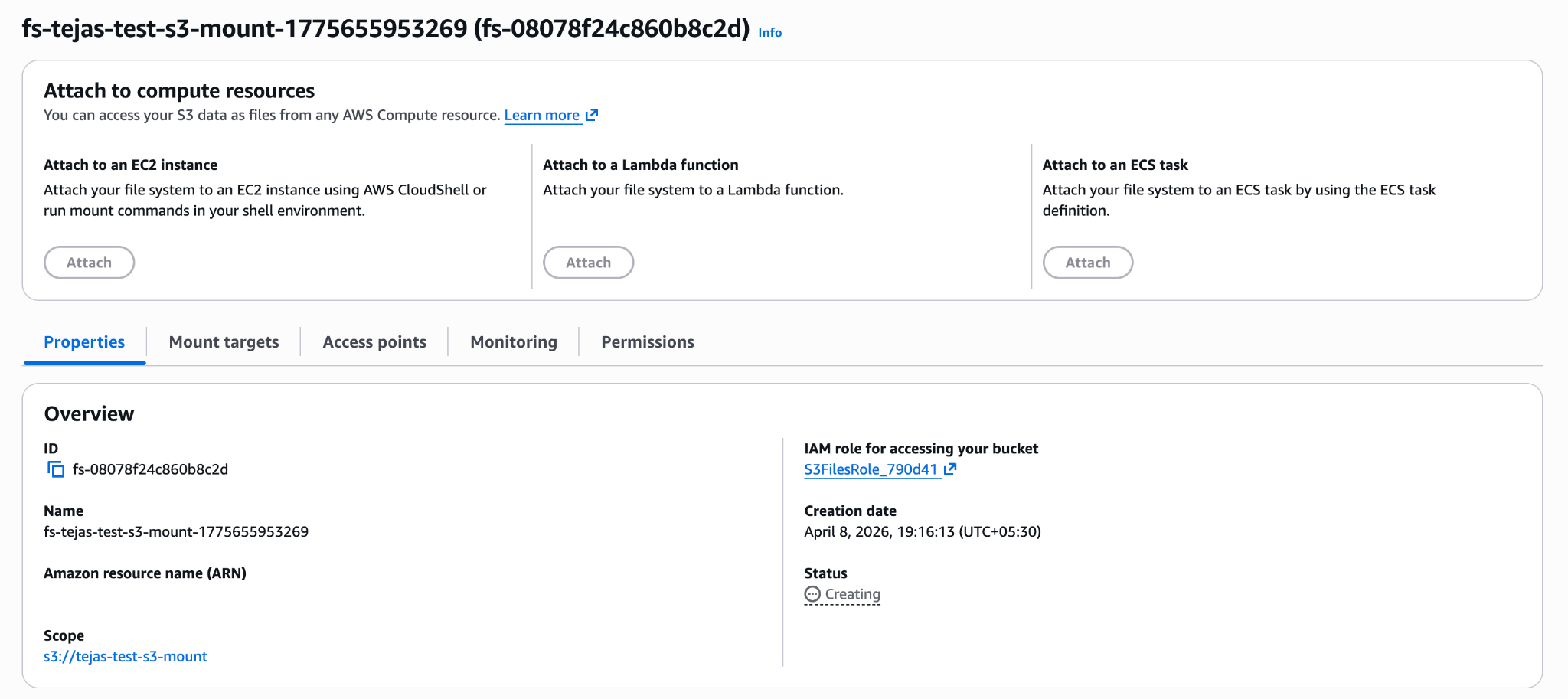
In the create dialog, select your bucket (versioning must be enabled) and the VPC where your EC2 instance lives. Click Create file system. The file system appears immediately in Creating state:
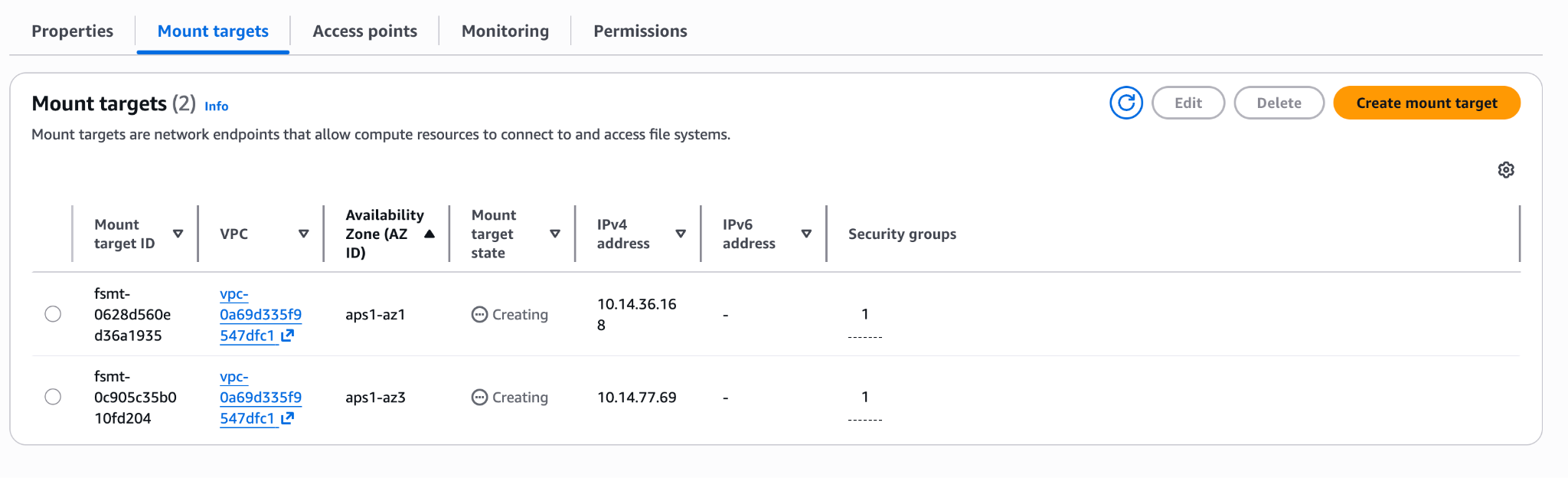
Step 2: Wait for Mount Targets
AWS provisions NFS mount targets in each AZ of your VPC. Wait a few minutes until they flip to Available:
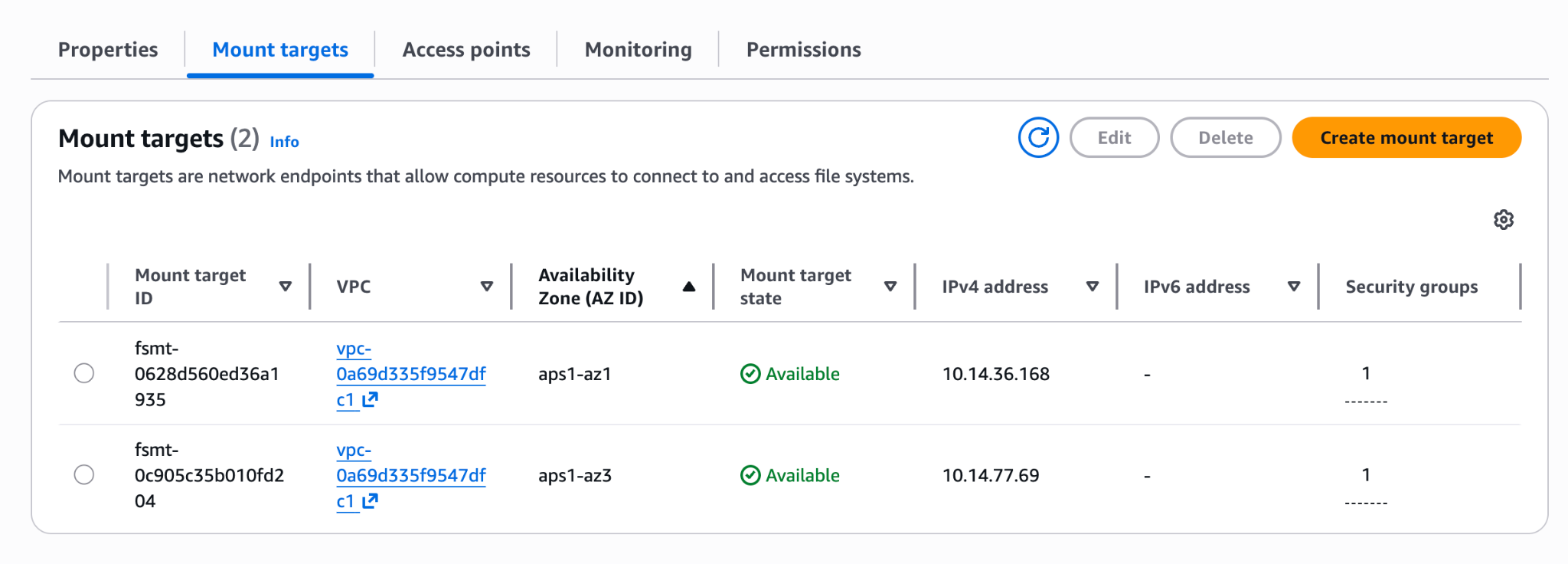
Step 3: IAM Permissions
Your EC2 instance role needs permissions for both the file system and the underlying S3 bucket. You can use the AWS managed policy AmazonS3FilesFullAccess for quick setup, or create a scoped inline policy:
1{2 "Version": "2012-10-17",3 "Statement": [4 {5 "Sid": "S3FilesMount",6 "Effect": "Allow",7 "Action": [8 "elasticfilesystem:ClientMount",9 "elasticfilesystem:ClientWrite",10 "elasticfilesystem:DescribeMountTargets"11 ],12 "Resource": "arn:aws:s3files:<region>:<account-id>:file-system/<fs-id>"13 },14 {15 "Sid": "S3BucketAccess",16 "Effect": "Allow",17 "Action": [18 "s3:GetObject",19 "s3:PutObject",20 "s3:DeleteObject",21 "s3:ListBucket"22 ],23 "Resource": [24 "arn:aws:s3:::<your-bucket>",25 "arn:aws:s3:::<your-bucket>/*"26 ]27 }28 ]29}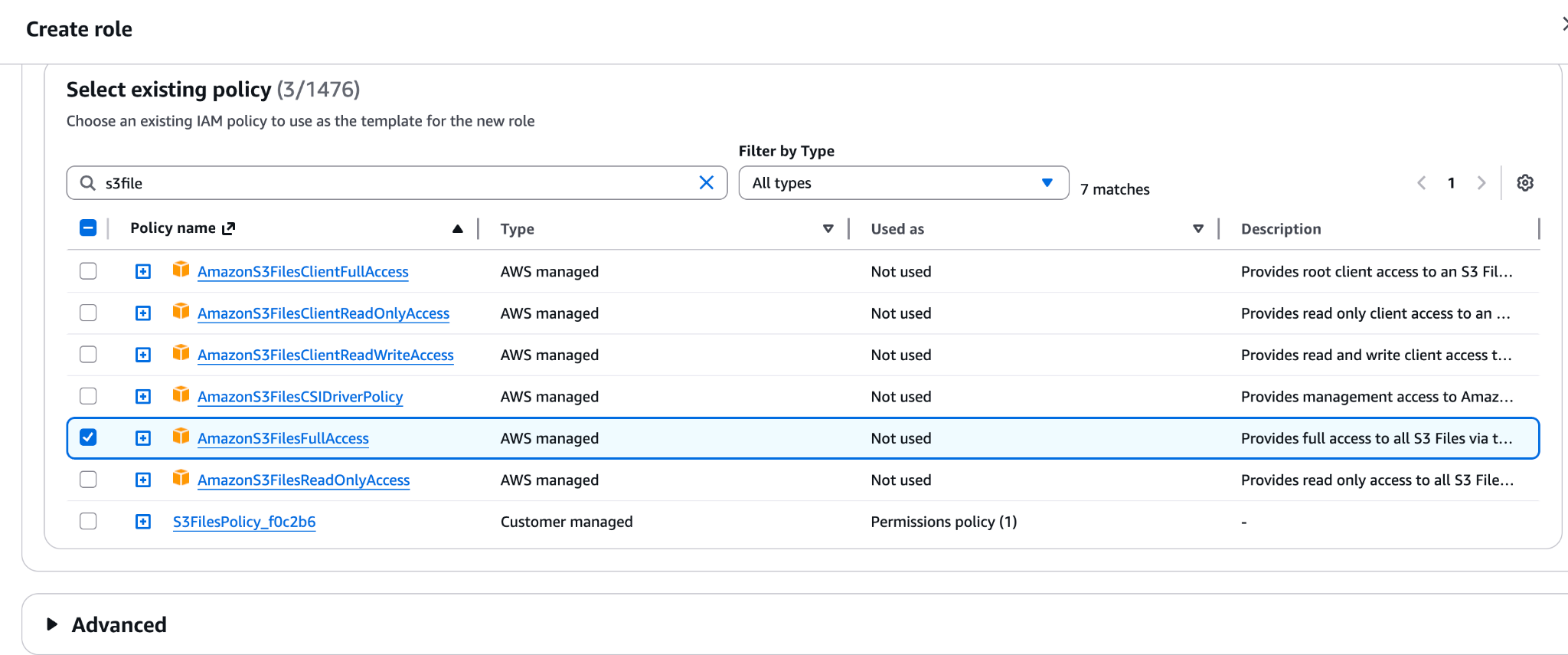
Step 4: Security Group
The mount targets need NFS traffic on port 2049 from your EC2 instance. Add an inbound rule on the mount target's security group allowing TCP 2049 from your EC2 instance's security group (or subnet CIDR).
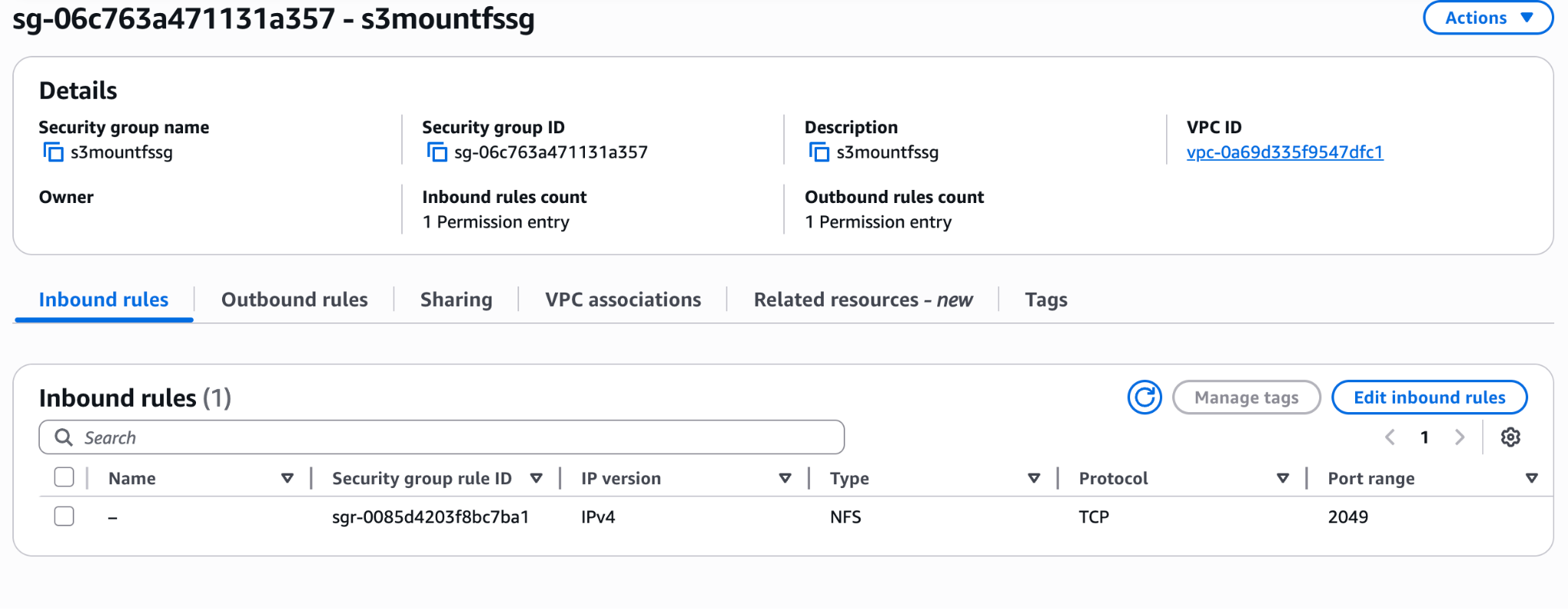
Step 5: Copy the File System ID
Back in the S3 Files console, note the File system ID (format: fs-xxxxxxxx) from the file system details page. You'll use this in the mount command. You can also click Attach on the file system to get the pre-generated mount command with the correct ID already filled in.
Step 6: Mount via EC2 Instance Connect
Open EC2 Instance Connect from the EC2 console to get a browser-based terminal — no SSH key setup needed. Then run:
1# Create the mount point directory2sudo mkdir -p /home/ec2-user/s3files34# Mount the file system (replace fs-ID with yours)5sudo mount -t s3files fs-0xxxxxxxxx:/ /home/ec2-user/s3filesamazon-efs-utils is pre-installed on AWS AMIs
mount -t s3files command requires the amazon-efs-utils package. It is pre-installed on Amazon Linux 2 and AL2023 AMIs. On Ubuntu, run sudo apt-get install -y amazon-efs-utils first.
From here, standard file operations work as expected. Files written to the mount appear in the S3 bucket as regular objects within minutes:
1# Write a file through the mount2echo "Hello S3 Files" > /home/ec2-user/s3files/hello.txt34# Verify locally5ls -al /home/ec2-user/s3files/hello.txt67# Within minutes, it appears in S3 as a regular object8aws s3 ls s3://your-bucket/hello.txtPersist the mount across reboots
/etc/fstab:fs-0xxxxxxxxx:/ /home/ec2-user/s3files s3files _netdev,tls,iam 0 0The
iam option uses the instance's IAM role automatically — no credentials to manage.Attaching from the EC2 Console
Alternatively, you can attach the file system when launching or modifying an EC2 instance directly from the EC2 console. AWS generates the user data script automatically, selecting the right subnet and mount point. This is handy when you want the instance to come up with the file system already mounted.
When to Use S3 Files
S3 Files is the right tool when you need file system semantics on top of S3 data — shared access across multiple compute resources, standard file I/O without SDK changes, and automatic durability through S3.
- ML training pipelines — point PyTorch DataLoader, Hugging Face datasets, or any training framework at a file path. The data comes from S3 without rewriting any code.
- Agentic AI workloads — multiple agents reading and writing files concurrently. NFS close-to-open consistency ensures a write from one agent is seen by others after file close.
- Data pipelines staging intermediate results — write to the mount, downstream consumers read from S3 directly.
- Any tool that expects a file path — legacy tools, shell scripts, Python libraries that use
open()— they all work without modification.
Not for these workloads
S3 Files vs. Other Options
| Aspect | EFS / FSx | S3 Files |
|---|---|---|
| Access protocol | NFS v4.1 / SMB / Lustre | NFS v4.1 |
| Backing store | Internal (no S3 access) | Your S3 bucket (objects visible) |
| POSIX semantics | Full | Full (UID/GID in S3 metadata) |
| Consistency | Strong / close-to-open | NFS close-to-open |
| Data accessible via S3 API | No | Yes — same objects |
| Code changes needed | No | No |
| Bucket versioning req. | N/A | Required |
| Storage cost | EFS/FSx pricing | S3 pricing (much cheaper) |
| Best for | NAS migration, HPC, general | ML/AI, pipelines, S3-backed apps |
Pricing
You pay for three things: storage used in the file system (at S3 rates), small file reads and all write operations to the file system, and S3 API requests during synchronisation between the file system and your bucket. Check the S3 pricing page for the S3 Files tier — storage is billed at S3 rates, which is significantly cheaper than EFS for large datasets.
Summary
- S3 Files is created from the S3 console (S3 → Files → File systems), not EFS
- Your bucket needs versioning enabled
- Mount targets are created automatically in your VPC — wait for Available status
- Mount with
mount -t s3filesusing theamazon-efs-utilspackage - Files written through the mount appear in the S3 bucket as regular objects within minutes
- Consistency is NFS close-to-open — not real-time, but predictable
- Works with any NFS-capable client: EC2, ECS, EKS, Lambda
The biggest practical win: existing tools that expect a file path just work. No boto3, no SDK wrappers, no sync cron. Point your tool at
/mnt/s3files/and it reads and writes S3 objects transparently.